
Step-by-step guide
How to update a live restaurant QR menu
A practical guide to changing dishes, prices, and availability in a live restaurant QR menu without reprinting table QR codes.
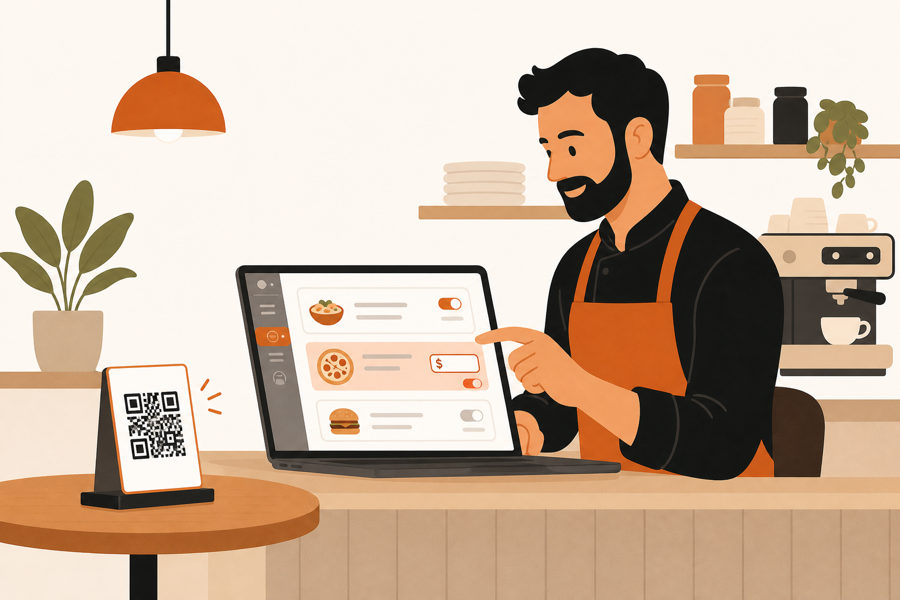
A live menu should not need new QR stickers
Restaurants change menus all the time. A dish sells out, a price changes, a weekend special starts, or a category needs to move.
If your QR code only opens a PDF, every change can become a file problem. Someone updates the file, uploads it, checks the link, and hopes the old version is gone.
A live QR menu works differently. The table QR code stays the same. The menu behind it changes.
What to update first
Start with changes guests notice immediately:
- sold-out items
- price changes
- daily specials
- allergens or diet notes
- item descriptions
- category order
- photos that help guests choose
Do not rebuild the whole menu every time. Small, accurate updates are more useful than a big redesign that never gets finished.
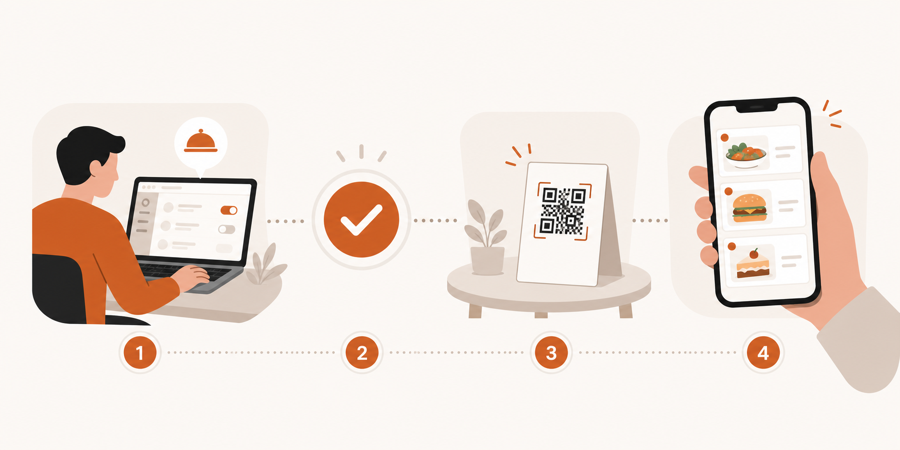
The simple update flow
Use this flow:
| Step | What to do |
|---|---|
| Find the item | Open the menu item, category, or modifier that changed |
| Make the change | Update price, availability, description, or display order |
| Check the guest view | Confirm the menu still reads clearly on a phone |
| Publish | Make the current menu visible to guests |
| Scan the QR | Open the same table QR code and check the result |
That last step matters. Operators should test the menu the same way guests see it: from a phone, at a table, through the QR code.
Why this beats a PDF menu
A PDF menu can work when the menu rarely changes. It becomes painful when updates are frequent.
Common PDF update problems:
- old links stay in circulation
- files are hard to read on phones
- staff may share the wrong version
- seasonal changes require another upload
- QR stickers may point to a stale file
A live menu reduces that risk because the QR code points to the menu experience, not one frozen file. For the format decision, read QR menu vs PDF menu.
Keep staff in the loop
Menu updates should not surprise the team.
Before publishing a visible change, make sure staff knows:
- what changed
- when it changed
- whether an item is hidden, sold out, or renamed
- whether the kitchen can still prepare it
- whether prices changed for the current shift
This is where a QR menu becomes part of restaurant operations. The menu should stay connected to service, not live as a separate file.
If guests can order from the menu, staff review matters even more. See QR ordering with staff approval.
What to check before choosing software
Before choosing QR menu software, ask:
- Can one QR code keep working after menu edits?
- Can you hide sold-out items quickly?
- Can you preview the guest menu before publishing?
- Can staff update categories, prices, and item details without a designer?
- Can the same menu later support table ordering or service requests?
- Does the phone view feel easy to scan?
The best system is the one your team can keep current during a normal shift.
Further reading
- Square explains menu organization in Organize your menu with Square for Restaurants.
- Lightspeed explains menu structure and profitability basics in Menu engineering.
- Apicbase covers operational menu control in Restaurant menu management.
Where MenuSuite fits
MenuSuite treats the QR menu as a live restaurant surface. Guests scan the same table QR code, while the restaurant can keep dishes, prices, and availability current behind it.
If the problem is only a hard-to-read file, start with QR menu vs PDF menu. If the bigger problem is that guests should take action from the table, read QR menu vs QR ordering system.